¶ ZECTRIX NOTE4 Firmware Upgrade
This page is for ZECTRIX NOTE4 devices running the official commercial firmware and using ZECTRIX Cloud. It does not apply to NOTE4 DevKit reference firmware or NOTE4C DevKit.
Looking for DevKit firmware or source code?
¶ Upgrade Through ZECTRIX Cloud
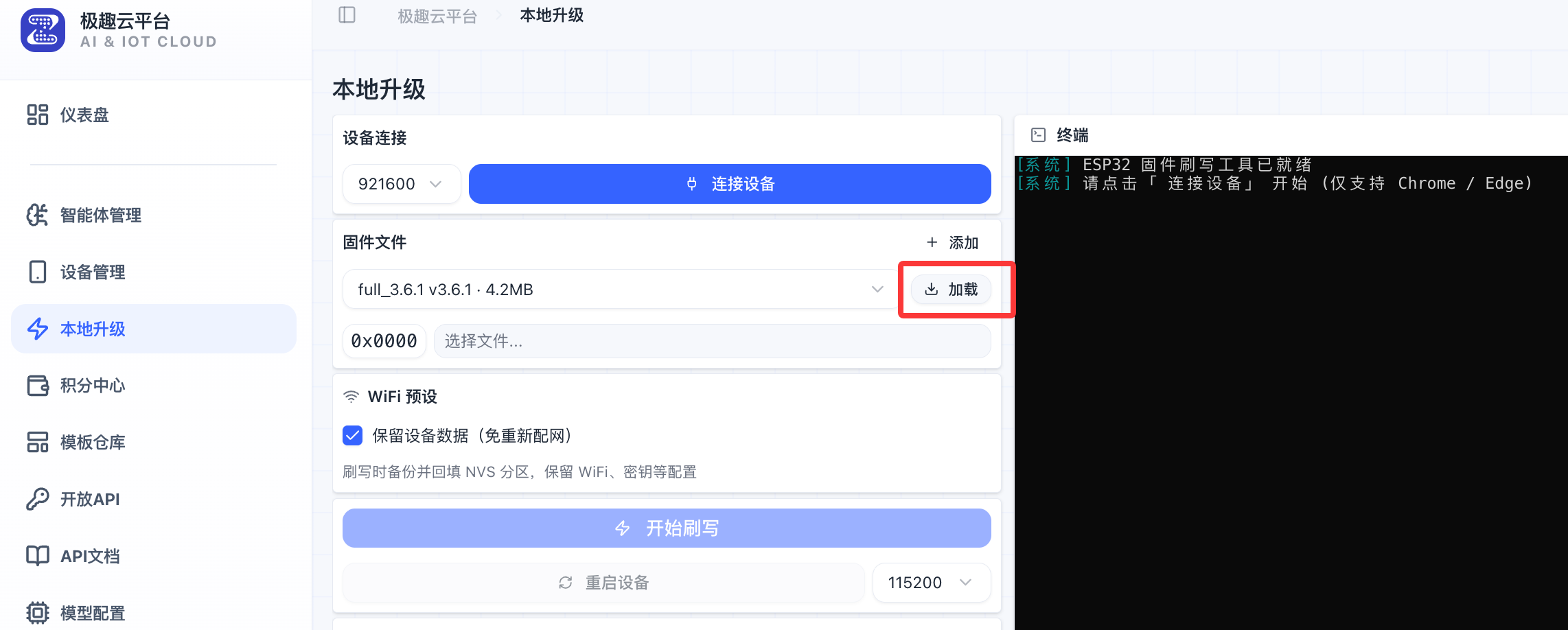
NOTE4 users can select and flash official commercial firmware through the Local Upgrade feature on ZECTRIX Cloud.
¶ Before You Begin
- A ZECTRIX NOTE4 running the official commercial firmware
- A USB cable that supports data transfer
- Chrome or Edge
- A ZECTRIX Cloud account that you can sign in to
¶ Steps
- Open ZECTRIX Cloud in Chrome or Edge and sign in.
- Select Local Upgrade from the menu on the left.
- Connect your Note 4 to your computer with the USB cable.
- Click Connect Device, then select the corresponding device from the serial-port list shown by the browser.
- In the Firmware File section, select the firmware version you want to flash.
- Click Load beside the version and wait for the firmware file to finish loading.
- To retain the existing Wi-Fi credentials, keys, and other settings, select Keep Device Data (No Need to Reconfigure Wi-Fi).
- Confirm that both the device and firmware version are correct, then click Start Flashing.
- Wait for the terminal panel on the right to report that flashing is complete, then restart the device.
¶ Important Notes
- Do not unplug the USB cable, close the page, or allow the computer to sleep while flashing is in progress.
- Select only official NOTE4 commercial firmware that matches your device. DevKit reference firmware is a separate firmware line and is not interchangeable.
- If the browser cannot detect the serial port, try a USB cable that supports data transfer and confirm that you are using Chrome or Edge.
- If the device's existing configuration is faulty, clear Keep Device Data, flash it again, and reconfigure the network afterward.